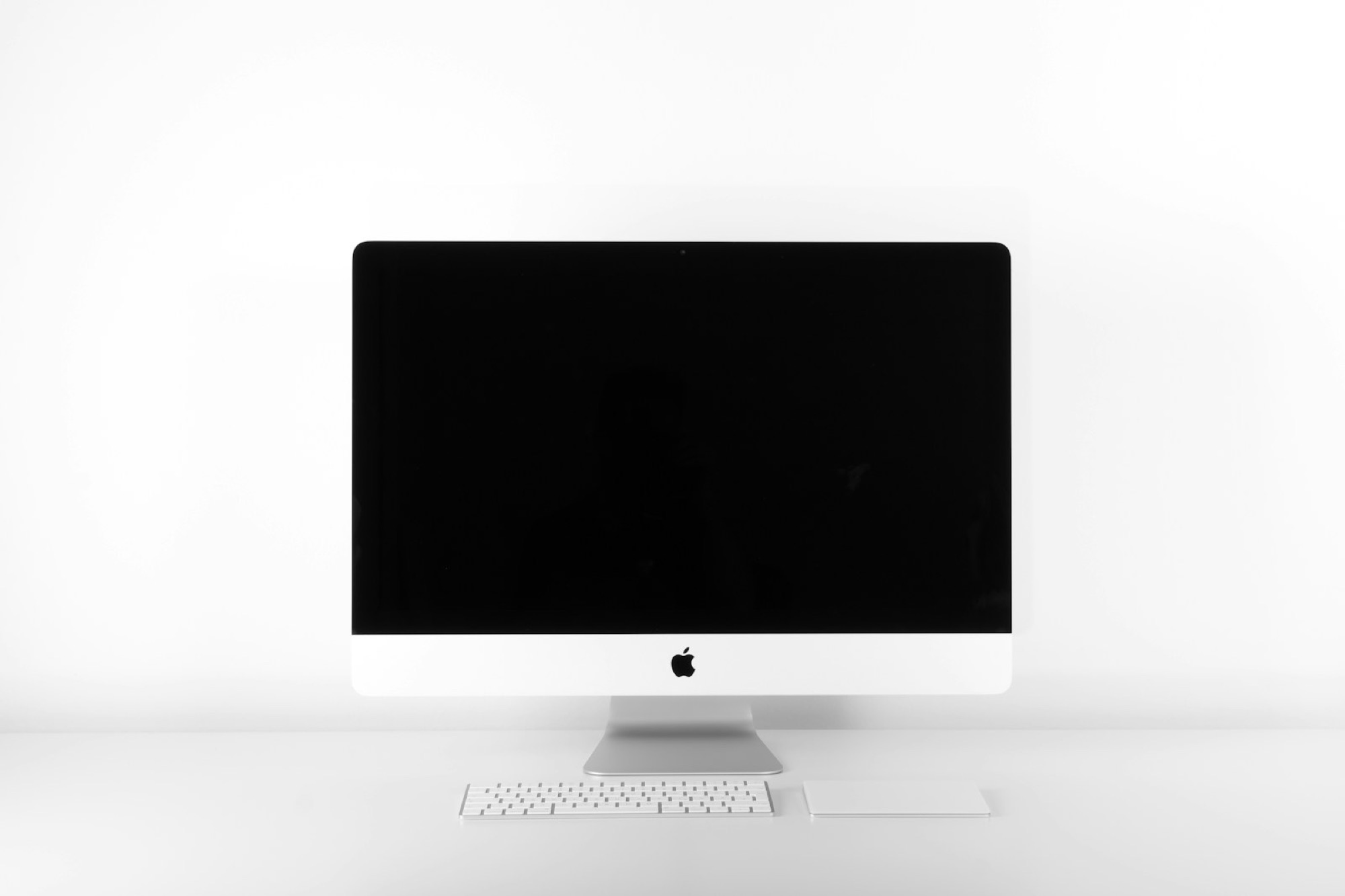
Looking for a monitor and stuck between 27-inch 4K, 32-inch 4K and a wall of other combinations? Size tells you how large the panel is; resolution tells you how many pixels it contains. You need both, plus viewing distance, to know whether the result will feel sharp or simply oversized. Mac users chasing very high pixel density can start with our best 5K monitors.
01
Size and resolution are not the same
Put the same 4K resolution on a 27-inch and a 32-inch screen and the smaller one looks denser because the pixels are packed more tightly. The larger display makes everything physically bigger at the same scale, but it also takes over more of the desk. Neither is automatically better.
Think about the applications you keep open and how far you sit from the screen. A 32-inch monitor can feel enormous on a shallow desk; a 24-inch panel leaves room for speakers or a second display. An arm gives you more control over distance and height. Pair it with our standing desk height guide if the workstation moves.
02
Common monitor pairings
A few common pairings work well. A 24-inch 1080p screen is cheap, while 1440p looks sharper. At 27 inches, 1440p offers good value. Moving to 4K makes text clearer, although you will often use scaling. A 27-inch 5K screen is sharper again and works well with macOS.
At 32 inches, 4K offers plenty of room without making text tiny once scaling is set sensibly. Ultrawides are different rather than simply bigger: they are excellent for timelines and side-by-side windows, but trade vertical space for width and need a desk that can fit them.
03
How screen scaling works
Scaling is the part specifications rarely explain well. It makes text and controls comfortable to read while keeping the fine detail of a high-resolution panel. It does not throw pixels away, although older Windows apps can still look inconsistent. Choose the usable workspace you enjoy, not the smallest interface you can technically see.
Your computer and cable must also drive the chosen resolution and refresh rate. USB-C is only a connector shape; the underlying bandwidth varies. Read our USB-C hub vs docking station guide before expecting one cable to handle power, peripherals and a demanding display. Mac mini users can compare options that work in our best monitors for Mac mini shortlist.
04
Match the display to the job
For office work, start with clear text and a stand that adjusts well. Make sure the screen wakes without fuss and connects easily to your laptop. Creative work needs good colour. Gaming often benefits more from a faster refresh rate than from moving from 4K to 5K. Do not judge the screen by resolution alone.
Try the display with your normal apps before the return window closes. Set the intended scale, open several windows and read small text for a while. Connect through the exact dock and cable you plan to use. Also check that the screen leaves enough room for a comfortable office chair and workstation fit.
As a starting point: 27-inch 1440p is the value-minded productivity choice, 27-inch 4K favours sharpness and 32-inch 4K adds physical workspace. Your desk, eyesight and software get the final vote.
Sources and further reading
We use primary and specialist sources to check the principles in this article. Product recommendations are researched separately.


